Get started
Find your way around
The sidebar, the top bar, the command palette and Ask HRS AI.
The sidebar
Grouped by what you are trying to do rather than by feature name.
- Overview — Dashboard, ShieldScore, Exposure, Reports, Report builder.
- People — your directory, groups and individual profiles.
- Programs — training library, Arena, Studio, policies, compliance.
- Operations — phishing, Smart Reinforcement, automations.
- Settings — organisation, roles, billing, integrations.
The toggle at the top collapses it to an icon rail. Your choice is remembered.
The top bar
Search covers pages, people and content — Ctrl K or ⌘K. The chip beside it shows
your plan and links to billing. The bell is the notification centre; it polls in the
background and only one browser tab does the polling.
Ask HRS AI
⌘K also opens Ask HRS AI, the copilot. It is scoped to the page you are on, so on
the executive overview it answers about your current risk picture and on a person's
profile it answers about that person.
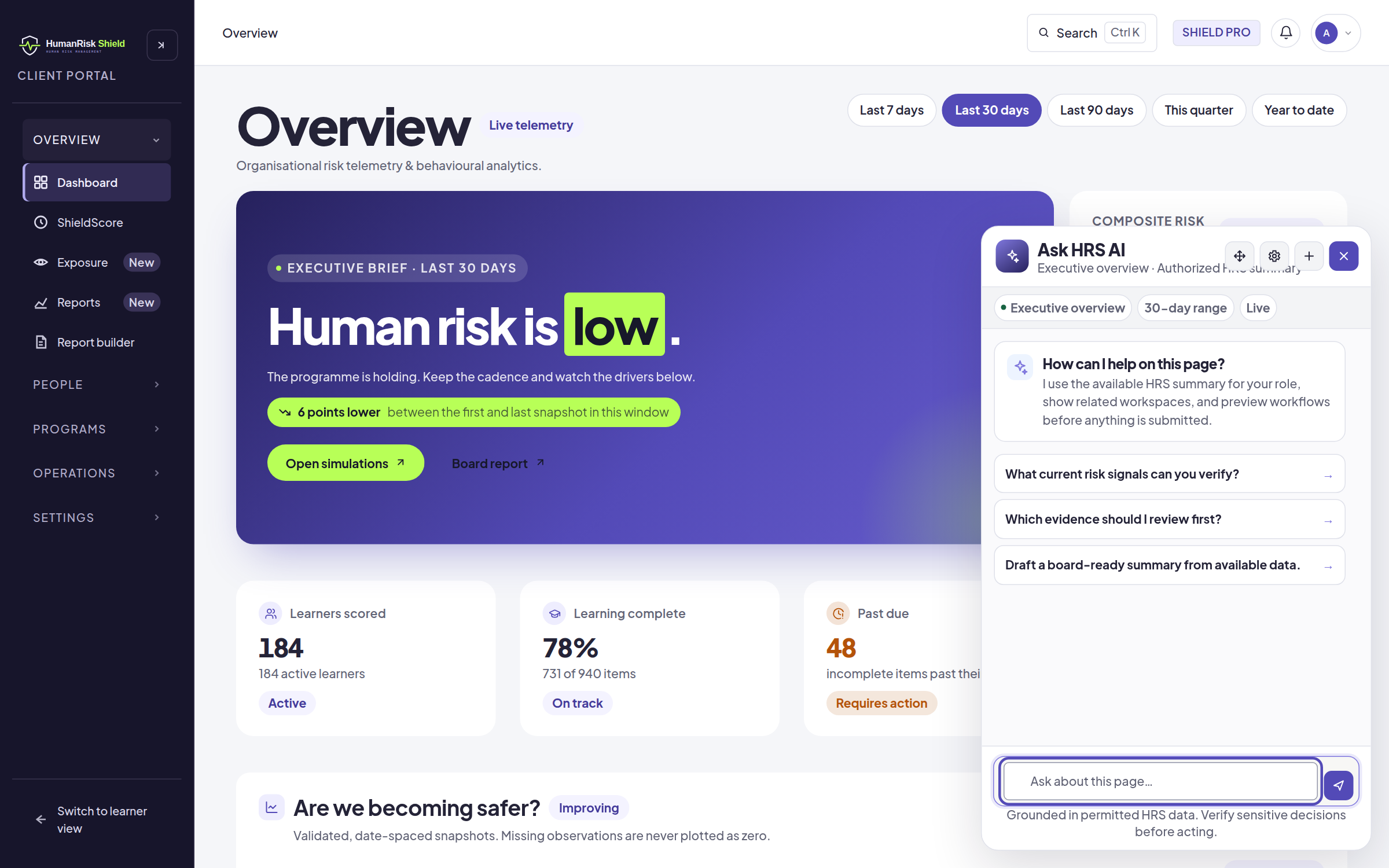 : Ask HRS AI reads only what your role is already allowed to see.
It previews any workflow before submitting it, and it will not act on your behalf without showing you first.
Ask HRS AI answers from the HRS summary available to your role. It cannot reveal a record you could not open yourself.
Switching portals
An admin who also learns sees Switch to learner view at the foot of the sidebar. That is your own learner experience, not an impersonation of somebody else.
MSP operators acting inside a client organisation get a banner naming the client and an explicit Exit client view. Everything done in that state is audit-logged with your MSP attribution.